SwiftChart


Getting started
Installing SwiftChart via CocoaPods
SwiftChart is available through CocoaPods. To install it, simply add the following line to your Podfile:
pod "SwiftChart"
Installing SwiftChart manually
- Download SwiftChart.zip from the last release and extract its content in your project's folder.
- From the Xcode project, choose Add Files to ... from the File menu and add the extracted files.
What’s included in SwiftChart
- the Chart main class, to initialize and configure the chart’s content, e.g. for adding series or setting up the its appearance
- the ChartSeries class, for creating datasets and configure their appearance
- the ChartDelegate protocol, which tells other objects about the chart’s touch events
- the ChartColor struct, containing some predefined colors
Example
let chart = Chart()
let series = ChartSeries([0, 6, 2, 8, 4, 7, 3, 10, 8])
series.color = ChartColors.greenColor()
chart.add(series)
pod install from the Example directory first.How to use SwiftChart
Initialize a chart from the Interface Builder
The chart can be initialized from the Interface Builder. Drag a normal View into a View Controller and assign to it the
Chart Custom Class from the Identity Inspector.Initialize a chart programmatically
To initialize a chart programmatically, use the
Chart(frame: ...) initializer, which requires a frame:
let chart = Chart(frame: CGRect(x: 0, y: 0, width: 200, height: 100))
0 and add the constraints later:let chart = Chart(frame: CGRectZero)
// add constraints now
Adding a series to a chart
ChartSeries object:
let chart = Chart(frame: CGRect(x: 0, y: 0, width: 200, height: 100))
let series = ChartSeries([0, 6.5, 2, 8, 4.1, 7, -3.1, 10, 8])
chart.add(series)
Result:

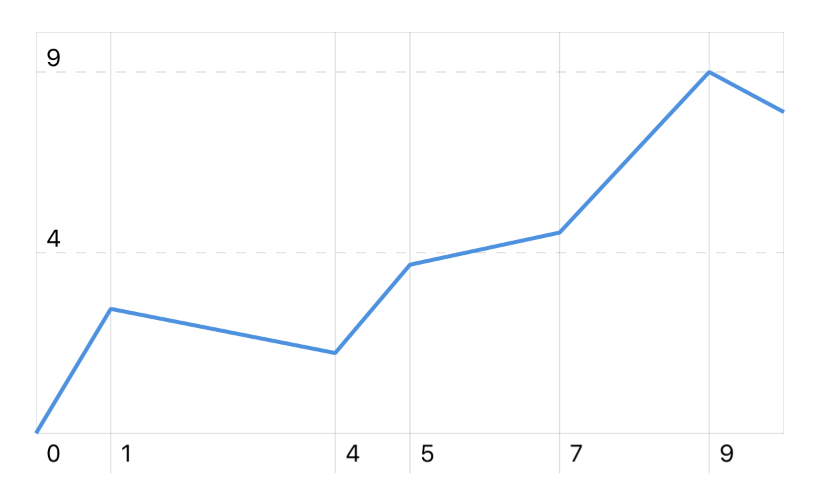
As you can see, as default the values on the x-axis are the progressive indexes of the passed array. You can customize those values by passing an array of
(x: Double, y: Double) tuples to the series initializer:let chart = Chart(frame: CGRect(x: 0, y: 0, width: 200, height: 100))
// Create a new series specifying x and y values
let data = [
(x: 0, y: 0),
(x: 1, y: 3.1),
(x: 4, y: 2),
(x: 5, y: 4.2),
(x: 7, y: 5),
(x: 9, y: 9),
(x: 10, y: 8)
]
let series = ChartSeries(data: data)
chart.add(series)
Result:
Using partially filled series
Use the
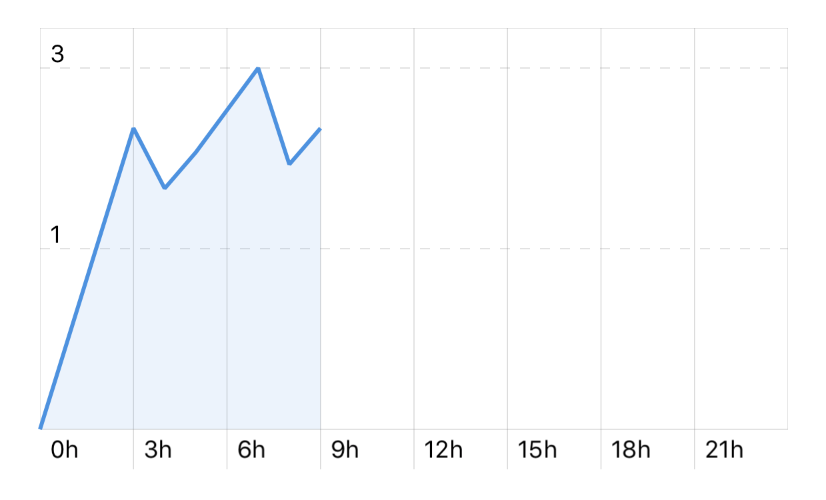
chart.xLabels property to make the x-axis showing more labels than those inferred from the actual data. For example,let chart = Chart(frame: CGRect(x: 0, y: 0, width: 200, height: 100))
let data = [
(x: 0, y: 0),
(x: 3, y: 2.5),
(x: 4, y: 2),
(x: 5, y: 2.3),
(x: 7, y: 3),
(x: 8, y: 2.2),
(x: 9, y: 2.5)
]
let series = ChartSeries(data: data)
series.area = true
// Use `xLabels` to add more labels, even if empty
chart.xLabels = [0, 3, 6, 9, 12, 15, 18, 21, 24]
// Format the labels with a unit
chart.xLabelsFormatter = { String(Int(round($1))) + "h" }
chart.add(series)
Result:
Using different colors above and below zero
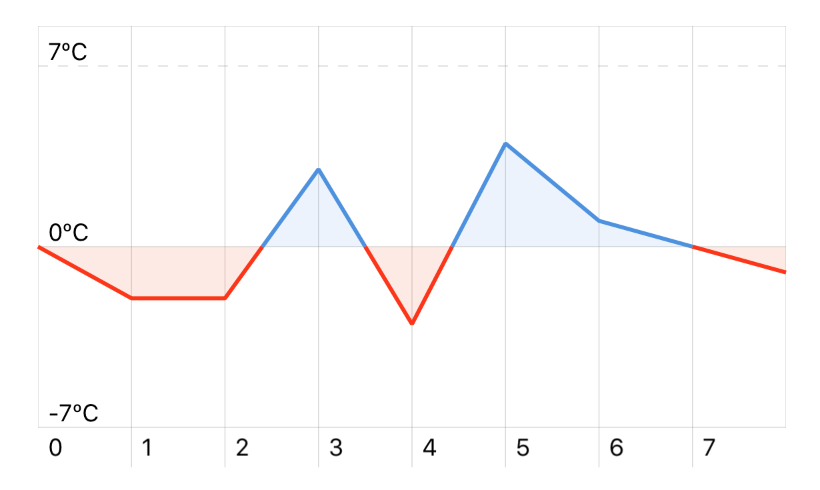
The chart displays the series in different colors when below or above the zero-axis:
let chart = Chart(frame: CGRect(x: 0, y: 0, width: 200, height: 100))
let data: [Double] = [0, -2, -2, 3, -3, 4, 1, 0, -1]

let series = ChartSeries(data)
series.area = true

chart.add(series)

// Set minimum and maximum values for y-axis
chart.minY = -7
chart.maxY = 7

// Format y-axis, e.g. with units
chart.yLabelsFormatter = { String(Int($1)) +  "ºC" }
Result:
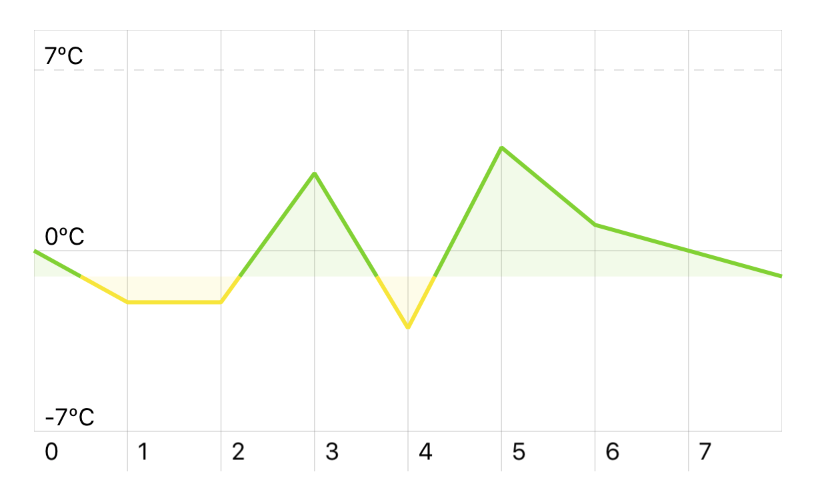
colors options in the ChartSeries class.series.colors = (
above: ChartColors.greenColor(),
below: ChartColors.yellowColor(),
zeroLevel: -1
)
Result:
Adding multiple series to a chart
Using the
chart.add(series: ChartSeries) and chart.add(series: Array<ChartSeries>) methods you can add more series. Those will be indentified with a progressive index in the chart’s series property.
let chart = Chart(frame: CGRect(x: 0, y: 0, width: 200, height: 100))

let series1 = ChartSeries([0, 6, 2, 8, 4, 7, 3, 10, 8])
series1.color = ChartColors.yellowColor()
series1.area = true

let series2 = ChartSeries([1, 0, 0.5, 0.2, 0, 1, 0.8, 0.3, 1])
series2.color = ChartColors.redColor()
series2.area = true

// A partially filled series
let series3 = ChartSeries([9, 8, 10, 8.5, 9.5, 10])
series3.color = ChartColors.purpleColor()

chart.add([series1, series2, series3])
Result:

Configuring touch events
To make the chart respond to touch events, implement the
ChartDelegate protocol in your class, e.g. a View Controller, and then set the chart’s delegate property:
class MyViewController: UIViewController, ChartDelegate {
  override func viewDidLoad() {
    let chart = Chart(frame: CGRect(x: 0, y: 0, width: 100, height: 200))
    chart.delegate = self
  }

  // Chart delegate
  func didTouchChart(chart: Chart, indexes: Array<Int?>, x: Double, left: CGFloat) {
    // Do something on touch
  }

  func didFinishTouchingChart(chart: Chart) {
    // Do something when finished
  }

  func didEndTouchingChart(chart: Chart) {
    // Do something when ending touching chart
  }
}
didTouchChart method passes an array of indexes, one for each series, with an optional Int referring to the data’s index: func didTouchChart(chart: Chart, indexes: Array<Int?>, x: Double, left: CGFloat) {
for (seriesIndex, dataIndex) in enumerate(indexes) {
if dataIndex != nil {
// The series at `seriesIndex` is that which has been touched
let value = chart.valueForSeries(seriesIndex, atIndex: dataIndex)
}
}
}
You can use
chart.valueForSeries() to access the value for the touched position.The
x: Double argument refers to the value on the x-axis: it is inferred from the horizontal position of the touch event, and may be not part of the series values.The
left: CGFloat is the x position on the chart’s view, starting from the left side. It may be used to set the position for a label moving above the chart:
API
Chart class
Use the
Chart class to initialize and configure the chart’s content, e.g. for adding series or setting up the its appearance.Example
let chart = Chart(frame: CGRect(x: 0, y: 0, width: 200, height: 100))
ChartSeries class
ChartSeries class to create a chart series and configure its appearance and behavior.Example
let data: [Double] = [0, -2, -2, 3, -3, 4, 1, 0, -1]
let series = ChartSeries(data)
ChartColors enum
Shorthands for various colors.
Example
let series = ChartSeries([0, 6, 2, 8, 4, 7, 3, 10, 8])
series.color = ChartColors.blueColor()
Common issues and solutions
If you have issue with this library, please tag your question with
swiftchart on Stack Overflow.The chart is not showing
The
Chart class inherits from UIView, so if your chart is not displaying it is likely a problem related to the view's size. Check your view constraints and make sure you initialize it on viewDidLoad, when UIKit can calculate the view dimensions.Some tips for debugging an hidden chart:
- start your app and then debug the UI Hierarchy from the Debug navigator
- initialize a simple UIView with a colored background instead of the chart to easily see how the view is positioned
- try to not to nest the chart in a subview for better debugging